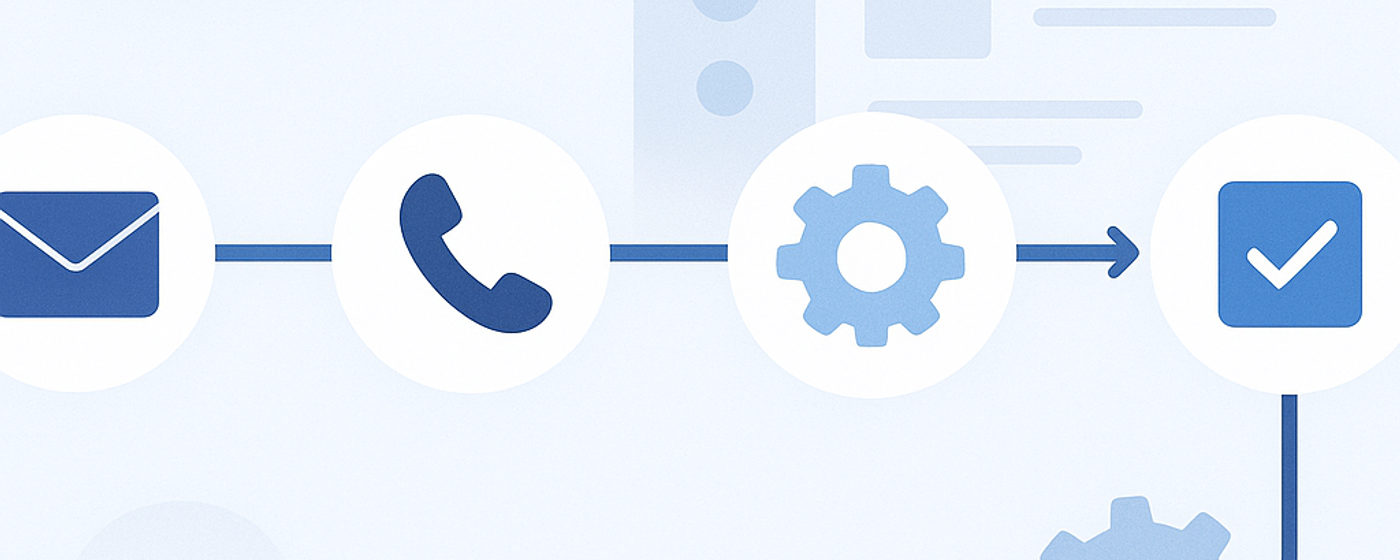
Outreach is a numbers game — but only if the numbers are disciplined. Sending a single email and hoping for the best rarely works. Neither does blasting a prospect with five messages in a week. The answer sits in the middle: a well-designed, multi-step cadence that spaces touches intelligently and varies the channel and angle each time.
Zoho CRM's Cadences feature gives you a native way to build these sequences without bolting on a third-party tool. And when you combine it with Leadmeister, you can automatically enrol prospects into the right cadence the moment they're identified — no manual data entry, no forgotten follow-ups.
What is a cadence in Zoho CRM?
A cadence is an automated, multi-step outreach sequence. You define the steps — emails, phone calls, tasks — along with the timing between each one. Once a lead or contact is enrolled in a cadence, Zoho CRM executes the steps in order, pausing for the intervals you've set and stopping automatically when the prospect replies or opts out.
Think of it as your follow-up discipline on autopilot. The cadence handles the scheduling and reminders so your reps can focus on the conversations that actually happen.
Step 1: Navigate to Cadences
In Zoho CRM, go to the Actions menu (the lightning bolt icon in the top bar) and select Cadences. If you don't see it, your CRM administrator may need to enable the feature under Setup > Automation > Cadences. Cadences are available in Zoho CRM Enterprise and above.
Step 2: Create a new cadence
Click the + New Cadence button. You'll be asked to give it a name and select which module it applies to — typically Leads or Contacts. Choose a descriptive name that tells your team what the cadence is for, such as "Inbound demo request — 5-touch follow-up" or "Cold outreach — enterprise tier".
Step 3: Add your cadence steps
This is where you design the actual sequence. Each step is an action your team (or the system) will take. Zoho CRM supports several step types:
- Email — an automated email sent from the rep's address using a template you select or write inline. You can personalise with merge fields (prospect name, company, etc.).
- Call — a task reminder for the rep to make a phone call. Zoho doesn't auto-dial, but the step creates a task and can log the outcome.
- Task — a generic to-do for the rep, useful for LinkedIn touches, research steps, or manual actions that don't fit neatly into email or phone.
For each step, set the wait time — the number of days (or hours) between the previous step completing and this one firing. A solid starting cadence might look like this:
- Day 1: Email — introduce the value proposition
- Day 4: Email — different angle, share a case study or proof point
- Day 8: Call — warm call referencing the emails
- Day 15: Email — new value, tie to a timely trigger
- Day 30: Task — decide whether to re-engage or park
Step 4: Set exit conditions
Exit conditions tell Zoho CRM when to stop the cadence for a given prospect. The most common ones are:
- The prospect replies to any email in the sequence
- The prospect unsubscribes or opts out
- The lead is converted to a contact (indicating they've moved down the funnel)
- A field value changes (e.g. lead status moves to "Qualified")
Always set at least a reply-based exit. Nothing damages your brand faster than sending follow-up emails to someone who already replied saying "not interested".
Step 5: Activate and enrol prospects
Once your cadence is saved, activate it. You can then enrol prospects manually (select records in a list view and choose "Add to Cadence") or automatically via workflow rules, blueprints, or the Zoho CRM API. Manual enrolment works fine for small teams, but it doesn't scale — and it relies on reps remembering to do it, which is exactly the sort of task that gets dropped when pipeline pressure builds.
This is where Leadmeister comes in.
How Leadmeister kicks off Zoho CRM Cadences automatically
Leadmeister identifies and enriches prospects before they ever land in your CRM. It finds the right companies, the right contacts within those companies, and packages them with the context your reps need — industry, company size, tech stack, recent triggers. The question is: what happens next?
Without automation, the answer is "a rep copies the data into Zoho CRM and remembers to add them to a cadence". In practice, that means some prospects get enrolled immediately, some get enrolled three days late, and some never get enrolled at all. The cadence is only as good as the enrolment discipline — and manual discipline is the weakest link in any outbound process.
Leadmeister solves this by pushing qualified prospects directly into Zoho CRM and enrolling them into the appropriate cadence in a single step. Here's how the flow works:
- Leadmeister identifies a prospect that matches your ideal customer profile.
- The prospect record is created in Zoho CRM (Leads or Contacts module) with all enriched data pre-filled — name, title, company, email, phone, and any custom fields you've mapped.
- Leadmeister triggers the Zoho CRM API to enrol that record into your chosen cadence automatically.
- The cadence begins. Day 1 fires without anyone lifting a finger.
The result: every qualified prospect enters the outreach sequence within minutes of being identified, with the right data, in the right cadence — consistently, every time.
Mapping prospects to the right cadence
Not every prospect should enter the same cadence. A mid-market SaaS company and a large enterprise in financial services need different messaging, different timing, and often a different number of touches. Leadmeister lets you set rules for which cadence a prospect is enrolled in based on attributes like:
- Industry or vertical
- Company size or revenue band
- Job title or seniority of the contact
- Lead source or trigger event
- Geography or region
This means you can build three or four cadences in Zoho CRM — each tailored to a segment — and Leadmeister routes every new prospect to the right one automatically. Your reps see the prospect appear in their cadence queue, ready to go, with no setup work on their side.
Why this matters more than it sounds
The gap between "we have a cadence" and "every prospect actually goes through the cadence" is where most outbound pipeline leaks. Teams build great sequences and then undermine them with inconsistent enrolment, delayed starts, or reps cherry-picking which prospects to add.
When Leadmeister handles the front end — identifying, enriching, creating, and enrolling — your cadence becomes what it was always meant to be: a system that runs reliably without depending on human memory. The reps' job shifts from "set up the sequence" to "respond when the sequence works" — which is a much better use of their time.
Getting started
If you're already using Zoho CRM, you can set up your first cadence in about 15 minutes using the steps above. Start simple — a 4-touch email sequence with widening gaps is enough to outperform most teams' manual follow-up.
If you want to connect Leadmeister to automatically feed prospects into those cadences, the integration takes minutes to configure. You map your Leadmeister fields to Zoho CRM fields, select which cadence each segment should enter, and switch it on. From that point, every prospect Leadmeister identifies is in your cadence and being worked — automatically, immediately, and consistently.
No more prospects sitting in a spreadsheet waiting to be imported. No more follow-ups that start three days late. Just a clean pipeline flowing from identification to outreach without friction.
Frequently asked questions
Cadences are available in Zoho CRM Enterprise and above. If you're on Professional or Standard, you won't see the Cadences option under Automation — you'll need to upgrade or build a similar workflow manually using workflow rules.
No. Zoho CRM only allows a record to be active in one cadence at a time. If you try to enrol a lead that's already in a cadence, it will be skipped. The active cadence must complete or the lead must be removed before it can enter a different one.
If you've set a reply-based exit condition (which you should), Zoho CRM automatically removes the prospect from the cadence as soon as a reply is detected. The rep can then pick up the conversation manually without further automated touches firing.
Leadmeister creates the lead record for you. When a prospect matches your targeting criteria, Leadmeister pushes a fully enriched lead into Zoho CRM and enrols it in the appropriate cadence in a single step — no manual record creation needed.
Yes. Leadmeister lets you set routing rules based on attributes like industry, company size, job title, or geography. Each rule maps to a specific cadence in Zoho CRM, so prospects are automatically enrolled in the right sequence without any manual sorting.
Zoho CRM provides cadence-level reporting that shows enrolment counts, completion rates, email open and reply rates per step, and exit reasons. Use these metrics to identify which steps are underperforming and adjust timing, messaging, or channel accordingly.
See it on your own pipeline
The free plan includes 25 prospect searches and 300 emails a month — enough to test whether personal-at-scale earns replies from your market.
Start free — no card needed